

OHS: Workplace Ergonomics for Office and Desk-Based Employees
Article #14 of #25 in the Occupational Health and Safety Series
Phase 2: Practical Health and Safety Topics
Introduction
When people talk about occupational health and safety, they often focus on hazards such as machinery, ladders, chemicals, electrical risks, or workplace fires. These are all important, but health and safety in an office or desk-based environment should not be overlooked. An employee may spend most of the day sitting at a desk, using a computer, answering calls, working on paperwork, or handling admin tasks. At first glance, this may seem like a low-risk type of work. However, poor workstation setup, awkward posture, repetitive movements, long periods of sitting, and badly arranged equipment can all lead to discomfort, fatigue, headaches, muscle strain, and long-term musculoskeletal problems.
In many small businesses, office ergonomics receives very little attention because the risks are not as visible as a broken staircase or an exposed electrical wire. Yet poor ergonomic conditions can still affect employee health and business performance in a meaningful way. A receptionist with ongoing neck pain, an administrator with wrist discomfort from poor keyboard use, a bookkeeper with lower back pain from a badly adjusted chair, or a call centre employee with headaches caused by screen glare may all struggle to work comfortably and efficiently. When these issues continue over time, they can lead to reduced concentration, more mistakes, lower productivity, absenteeism, and in some cases long-term injury.
Ergonomics is essentially about fitting the work to the person as far as reasonably possible, rather than forcing the person to work in an awkward or physically stressful way. In an office environment, this means looking at how desks, chairs, screens, keyboards, mice, documents, telephones, and work habits affect the body. It also means paying attention to factors such as lighting, posture, movement, repetitive tasks, and how long employees remain in the same position.
For small business owners, ergonomics does not need to mean expensive furniture or highly technical assessments. Good ergonomic practice often begins with simple observations and practical adjustments. Is the chair supporting the employee properly? Is the screen at a reasonable height? Are the keyboard and mouse positioned so the employee is not reaching awkwardly? Is the employee taking short movement breaks? Is glare from a window making screen work uncomfortable? These are small questions, but they can make a major difference to comfort and health over time.
In this article, we will look at what workplace ergonomics means in an office or desk-based setting, the common health problems caused by poor workstation design, the main ergonomic risk factors to watch for, and the practical steps small businesses can take to create healthier, more comfortable workstations for employees.
What Is Workplace Ergonomics?
Workplace ergonomics is the practice of designing or adjusting work, equipment, and the working environment to suit the needs of the person doing the job. The aim is to reduce strain on the body, improve comfort, support good posture, and lower the risk of injury or long-term physical discomfort.
In an office or desk-based environment, ergonomics usually focuses on:
sitting posture
chair support and adjustability
desk height and layout
screen position
keyboard and mouse placement
repetitive hand and arm movements
document handling
lighting and glare
how often the employee changes position or takes breaks
Good ergonomics does not mean one perfect setup that suits everyone. People differ in height, body shape, eyesight, comfort needs, and work tasks. The goal is to create a workstation that allows the employee to work in a comfortable, supported, and reasonably neutral position for most of the day.
Why Ergonomics Matters in Small Businesses
Office discomfort often builds slowly. An employee may not report a problem immediately because the pain starts as “just stiffness” or a mild headache at the end of the day. Over time, however, poor workstation design and repetitive habits can contribute to more serious problems such as chronic neck pain, lower back strain, shoulder tension, wrist pain, and fatigue.
This matters to small businesses because poor ergonomics can lead to:
reduced comfort and concentration
more fatigue during the workday
headaches and eye strain
lower productivity
more errors in admin or computer-based work
increased absenteeism
complaints of ongoing pain or discomfort
long-term musculoskeletal injuries that may require treatment or time off
Even if the business is small and the office team is limited, the effect can still be significant. If a key admin employee, receptionist, accounts person, or coordinator is working in discomfort every day, the quality and speed of work may suffer.
Common Problems Caused by Poor Office Ergonomics
Poor workstation setup and repetitive desk work can contribute to a range of health problems, including:
Neck pain
This often happens when the employee looks down at a laptop for long periods, twists to view a second screen, or works with a screen positioned too low or too far to one side.
Lower back pain
A chair with poor support, a desk that is too high or too low, slouched sitting, or long periods without movement can all contribute to back discomfort.
Shoulder and upper back tension
Reaching forward to the keyboard, using armrests badly, hunching toward the screen, or working with shoulders raised can create tension in the upper body.
Wrist and hand discomfort
Poor keyboard or mouse position, repetitive clicking, awkward wrist angles, and lack of arm support may contribute to wrist strain and hand fatigue.
Eye strain and headaches
Screens that are too bright, too close, too far, or positioned in glare from windows or lights can lead to visual discomfort and headaches.
General fatigue and stiffness
Sitting in one position for long periods without movement can make employees feel tired, stiff, and uncomfortable even if no single body part is badly affected yet.
Common Ergonomic Risk Factors in Desk-Based Work
A desk job may look simple from the outside, but several risk factors can combine to create discomfort over time.
1. Poor sitting posture
Employees often sit with:
a rounded lower back
shoulders hunched forward
the neck pushed forward toward the screen
legs tucked awkwardly under the chair
wrists bent upward while typing
one side of the body twisted toward a screen or phone
These postures may not feel severe in the moment, but when repeated every day they can place strain on muscles and joints.
2. Incorrect chair height or poor chair support
A chair that is too high can leave the employee’s feet unsupported. A chair that is too low can force the knees and hips into awkward positions. Poor back support may encourage slouching or leaning forward.
3. Screen positioned badly
If the screen is too low, the employee may bend the neck downward. If it is too high, the neck may tilt upward. If it is too far away, the employee may lean forward. If it is too close, the eyes may strain. If it is placed off to one side, the employee may twist repeatedly.
4. Keyboard and mouse too far away or too high
If the keyboard or mouse is positioned badly, the employee may reach forward constantly, lift the shoulders, or bend the wrists in awkward ways.
5. Long periods of sitting without movement
Even a well-set-up workstation does not remove the need for movement. Sitting for long periods without standing, stretching, or walking can increase stiffness and fatigue.
6. Repetitive tasks
Typing, mouse use, data capture, repeated clicking, and continuous document handling can contribute to strain if there is little variation in movement.
7. Laptop-only workstations
Laptops are convenient, but using a laptop alone for long periods often creates ergonomic problems because the screen and keyboard are attached. If the screen is at a good height, the keyboard may be too high. If the keyboard is comfortable, the screen may be too low.
8. Poor lighting and glare
Bright windows behind a screen, overhead glare, or poor lighting can make employees strain to see and hold awkward positions.
What a Good Office Workstation Should Aim to Achieve
The goal of an ergonomic workstation is not to create a rigid posture that must never change. It is to support a comfortable, balanced, and neutral working position that reduces unnecessary strain.
A good setup generally aims for the following:
the employee can sit close enough to the desk without reaching forward excessively
the feet are supported on the floor or a footrest if needed
the lower back is supported by the chair
the shoulders are relaxed, not raised
the elbows are close to the body and bent at a comfortable angle
the wrists are relatively straight while typing or using the mouse
the top part of the screen is around eye level or slightly below, depending on the employee and task
the screen is directly in front of the user, not far to one side
frequently used items are easy to reach
the employee can change posture and move during the day
Practical Ergonomic Adjustments for Small Businesses
The good news is that many office ergonomic improvements are simple and affordable. A small business does not always need new furniture to make meaningful changes.
1. Adjust the chair properly
The chair is one of the most important parts of the workstation. Employees should be encouraged to adjust it rather than simply accepting whatever position it is in.
Useful chair adjustments include:
setting the seat height so feet rest comfortably on the floor or on a footrest
adjusting the backrest to support the lower back
sitting back in the chair rather than perched on the front edge
making sure the chair can fit reasonably close to the desk
If the chair is damaged, unstable, or offers very poor support, replacement may be necessary.
2. Position the screen correctly
The screen should usually be placed directly in front of the employee at a comfortable viewing distance. In many cases:
the top of the screen should be around eye level or slightly lower
the screen should be far enough away to view comfortably without leaning forward
glare from windows or lights should be reduced where possible
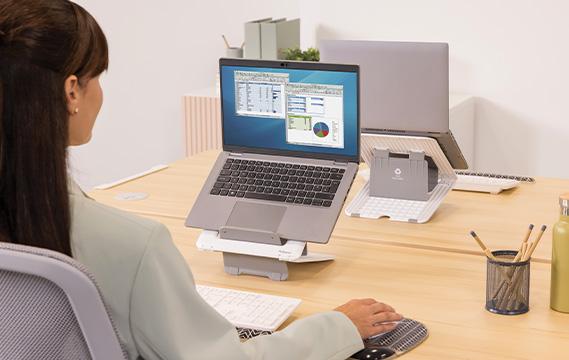
Employees using laptops for long periods may benefit from a laptop stand or riser together with a separate keyboard and mouse.
3. Place the keyboard and mouse within easy reach
The keyboard and mouse should be close enough that the employee does not have to reach forward constantly. The mouse should be positioned close to the keyboard, not far to the side.
4. Reduce awkward document handling
If employees work from printed documents while typing, a document holder placed near the screen may help reduce repeated neck turning or looking down.
5. Organise the desk layout
Frequently used items such as the phone, notepad, calculator, or files should be within easy reach. Employees should not have to twist repeatedly to access essential items.
6. Manage laptop use properly
A laptop is not ideal as a full-day workstation on its own. If employees use laptops for long periods, consider:
a separate keyboard
a separate mouse
a laptop stand or riser
a docking setup if the work is permanent and desk-based
7. Improve lighting and reduce glare
Simple adjustments may include:
repositioning the desk slightly
adjusting blinds or curtains
changing screen angle
improving task lighting where needed
avoiding strong reflections directly on the screen
The Importance of Movement and Micro-Breaks
A good workstation is important, but so is movement. The body is not designed to stay in one position all day, even a good one. Employees should be encouraged to:
stand up regularly
stretch briefly during the day
walk to a printer instead of always sitting
change position between tasks where possible
avoid sitting for very long uninterrupted periods
These do not need to be long breaks. Short movement breaks and posture changes throughout the day can help reduce stiffness and fatigue.
Ergonomics and Remote or Hybrid Work
Many small businesses now have employees who work partly from home or in hybrid arrangements. Home workstations can create additional ergonomic challenges because people may work from:
dining room chairs
couches
beds
coffee tables
poorly lit corners of the house
If employees work from home regularly, employers should still encourage safe workstation habits and practical setup improvements where reasonably possible. Even basic guidance on chair support, screen height, keyboard use, and movement can help.
Training Employees to Look After Their Own Workstations
Ergonomic improvement works best when employees understand the reason behind it. Training or awareness should cover:
how to adjust the chair
how to position the screen, keyboard, and mouse
the importance of posture variation and movement
recognising early signs of discomfort
reporting persistent workstation problems
safe laptop use for longer tasks
reducing screen glare and visual strain
Employees should know that pain and discomfort are not simply something they must accept as part of office work.
Common Ergonomic Mistakes Small Businesses Make
1. Assuming office work is automatically low risk
Desk work may not look dangerous, but discomfort and repetitive strain can still become serious over time.
2. Buying chairs and desks without helping employees adjust them
Even a decent chair may be used badly if nobody knows how to set it up.
3. Ignoring laptop-related strain
Laptop-only workstations are a common source of neck and shoulder discomfort.
4. Focusing only on furniture and ignoring work habits
Movement, posture variation, task rotation, and break habits matter too.
5. Waiting until someone is in severe pain before making changes
Small complaints and early discomfort are worth taking seriously.
Practical Examples of Ergonomic Risks in Small Businesses
Reception desk
A receptionist may answer calls, work on a computer, greet visitors, and handle paperwork all from one workstation. If the screen is too low, the chair is not supportive, and the phone is positioned awkwardly, neck and shoulder strain can build quickly.
Bookkeeping or admin office
An employee doing long hours of invoicing, data capture, and reporting may experience wrist, shoulder, and lower back discomfort if the workstation is poorly arranged and movement is limited.
Shared hot-desk environment
If multiple people use the same desk and chair without adjusting them each time, one or more employees may end up working in awkward positions for long periods.
Home-based support employee
A remote employee working from a dining chair with a laptop on a kitchen table may develop neck and back pain far more quickly than someone with a more suitable setup.
Final Thoughts
Office and desk-based work may seem less hazardous than many other types of work, but poor ergonomics can still affect employee health, comfort, and performance in a significant way. Neck pain, back strain, shoulder tension, headaches, wrist discomfort, and general fatigue often develop slowly, which is why they are easy to ignore at first. Yet over time, these problems can reduce productivity, increase absenteeism, and create long-term musculoskeletal issues for employees.
For South African small business owners, improving office ergonomics does not have to be expensive or complicated. In many cases, the most effective changes are practical and affordable: adjusting chairs properly, raising screens to a better height, improving keyboard and mouse position, reducing glare, organising desks more sensibly, and encouraging employees to move regularly. When employees understand how to set up their own workstations and feel comfortable reporting discomfort early, the business is in a much stronger position to prevent problems before they become serious.
Good ergonomics is really about supporting people to do their work in a healthier way. When office employees are comfortable, supported, and able to work without constant strain, the benefits are felt not only in reduced pain and injury risk, but also in better concentration, better morale, and better day-to-day performance.
In the next article, we will move away from office ergonomics and look at safe use of ladders and working at height in small businesses, including common fall risks, ladder safety rules, and when a task should not be done from a ladder at all.
Related Articles in the Occupational Health and Safety Series
Phase 1: Foundation and Legal Basics
OHS for Small Businesses - An Overview
OHS Act: What Every Small Business Needs to Know
How to Do a Health and Safety Risk Assessment
Creating a Simple OHS Policy and Assigning Responsibilities
Workplace Safety Training and Induction for Employees
First Aid Requirements and Emergency Preparedness
Personal Protective Equipment (PPE)
Incident Reporting and Investigating Workplace Accidents
Workplace Inspections and Safety Checklists
Phase 2: Practical Health and Safety Topics
Manual Handling and Lifting Safety
Electrical Safety in the Workplace
Workplace Ergonomics for Office Employees
Ladder Safety and Working at Height
Chemical Safety in the Workplace
Managing Contractors, Visitors, and Customers On Site
Vehicle, Driving, and Delivery Safety
Workplace Violence, Aggression, and Conflict
Smoking, Vaping, and Substance Use in the Workplace
Young Workers, Temporary Staff, and Vulnerable Employees
Heat, Sun, and Outdoor Work Safety
Rain, Storms, and Severe Weather Safety
Working in Clients' Homes and Customer Premises
AI Disclaimer
AI Tools were used to assist with research. Remember to always cross-check everything that you read.


